Create first CPAbooks instance
Accessing the CPAbooks online SaaS version could be very simple across all its different platform available. To start using the CPAbooks online version you need web browser.
Tip
CPAbooks is a web based business application designed to run on various modern web browsers. Supported web browsers included
Google Chrome (recommended)
Firefox
Safari
Signup at CPAbooks.com
Make sure that before create a new instance, you have an account at CPAbooks, if not please create an account, visit https://www.cpabooks.org/web/signup to create a new account.
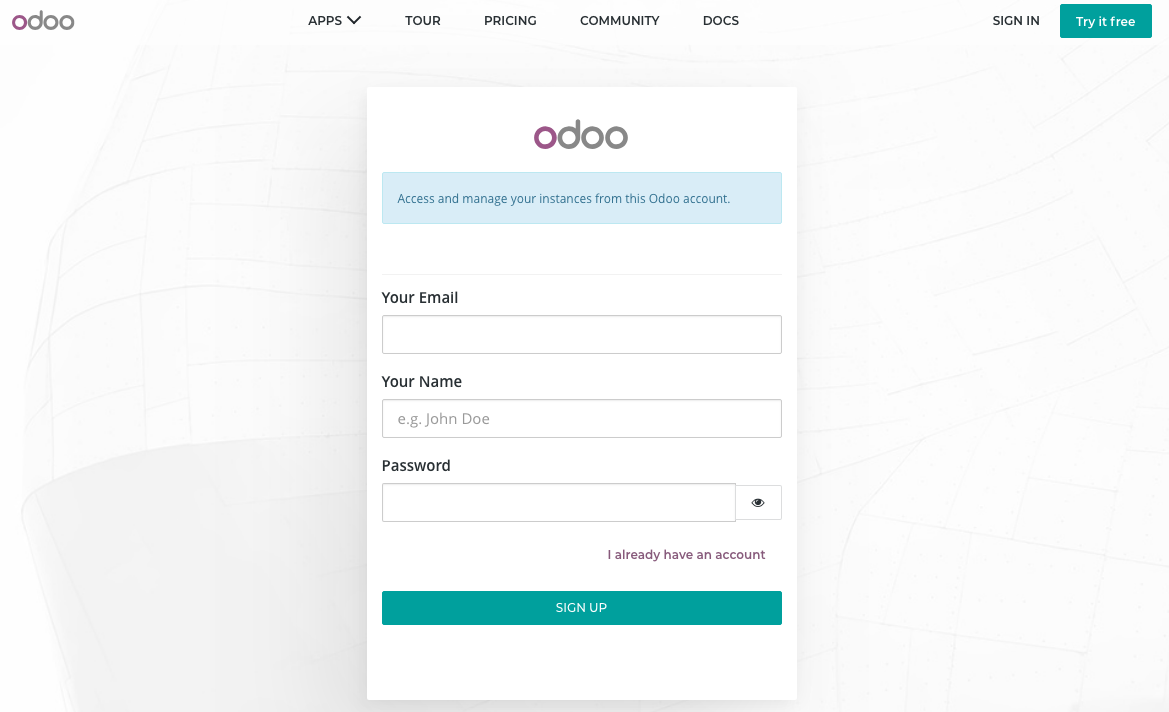
Create an instance
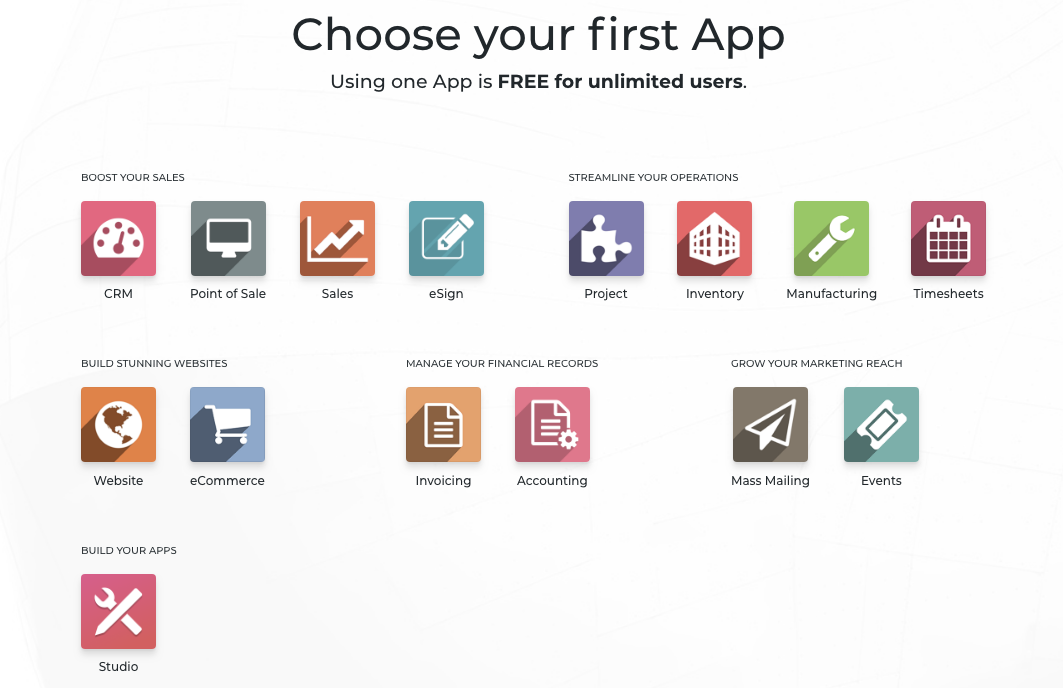
You can start with one application, the first application you start is free for unlimited users or you can continue the additional applications on the monthly subscription basics.
Login into CPAbooks, open the link https://accounts.odoo.com/trial and choose your first application you would like to start with, I choose CRM application to start with.
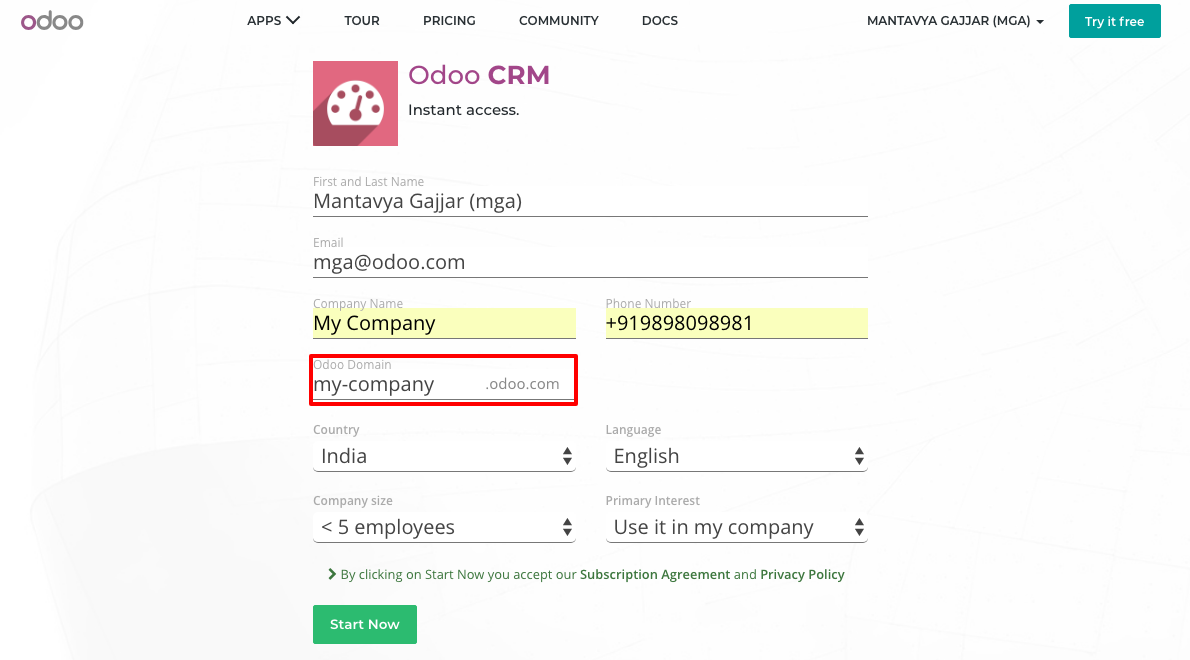
You will be asked to enter your name, email and phone number, the company name decide what will be your sub-domain on CPAbooks. I have entered My Company, the subdomain allocated me is CPAbooks, however you can change the subdomain by clicking on it.
Activate an instance
The first screen you will get on successful instance creation is your home screen. The list of apps will be installed and appeared based on first selected app.
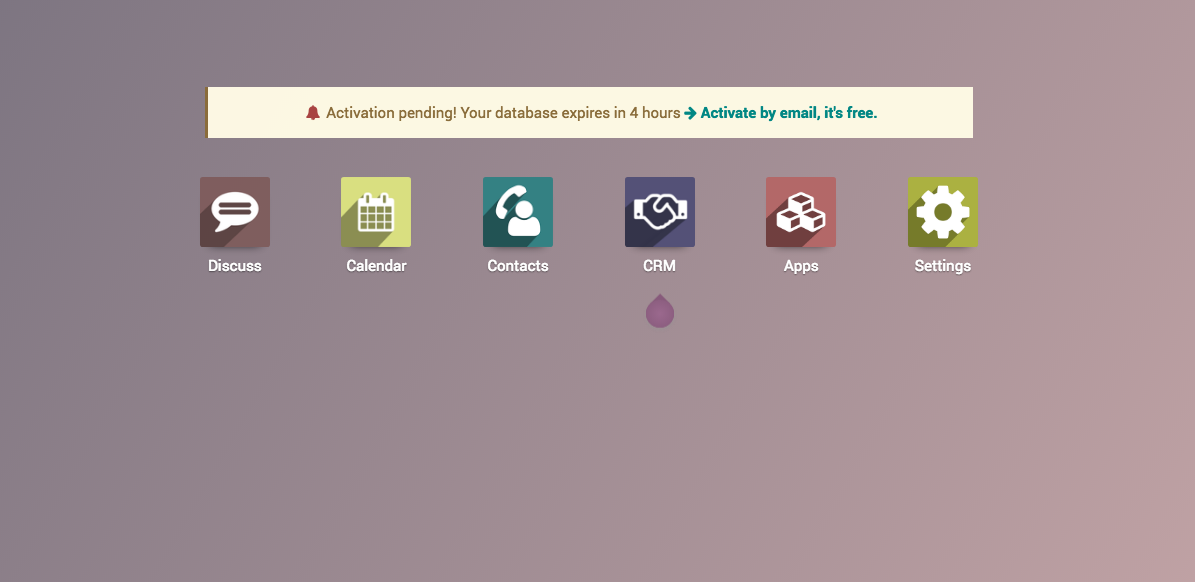
The instance has to be activated with in 4 hours to keep it running forever, else it will be expired in next 4 hours and you may lose changes made to an instance.
Tip
You may lose the data and instance, if you have not activated within
4 hours. If you not receive an email, click on Activate by email link to
resend the activation email.
Video
Let’s see how to get start with the first free application, activate it and start using the CPAbooks online instance. Access the video at https://www.youtube.com/watch?v=fAi-NGirE44